
Step by step setup
IPTV Installation Guide: Firestick, Smart TV and More
Get your Ireland IPTV or UK IPTV subscription running in a few minutes on Firestick, Android TV boxes, Samsung and LG smart TVs, phones, tablets or a web browser. Pick your device below, install IB Player Pro, then send us the MAC address and device key shown in the app and we set up your playlist for you.
Choose your device
Which device are you setting up?
Before you start
- Your order confirmation: we send your payment and order details by email and WhatsApp after you order.
- The IB Player Pro app. Activation of this premium media player is included free with our 6 and 12 month plans.
- A stable internet connection: we recommend at least 10 Mbps for HD and 25 Mbps for 4K, ideally wired or strong 5 GHz Wi-Fi.
- Your device and its remote, plus a way to send us a message on WhatsApp or by email with your MAC address and device key.
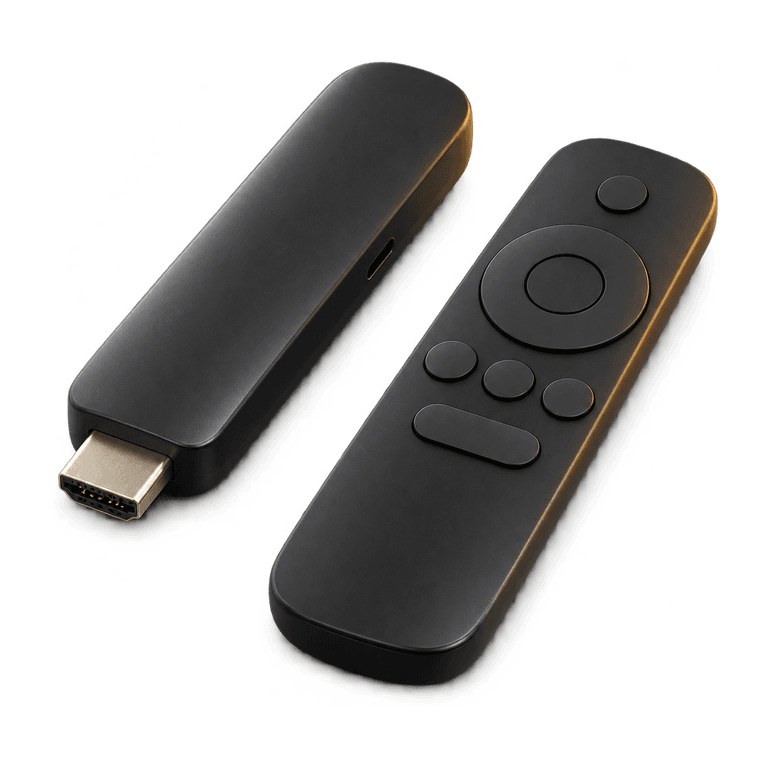
How to Install IPTV on Firestick
App sourceDownloader code 2817724
On Amazon Firestick and Fire TV you install IB Player Pro with the free Downloader app, which takes about five minutes.
- Step 1
Unlock Developer options
Go to Settings > My Fire TV > About and select your device name 7 times until you see a message that you are now a developer.
- Step 2
Install Downloader
Go to Find > Search, type Downloader and install the app by AFTVnews.
- Step 3
Allow Downloader to install apps
Go to Settings > My Fire TV > Developer options > Install unknown apps and turn it on for Downloader.
- Step 4
Enter the code 2817724
Open Downloader, select the URL box, enter 2817724 (or ibplayerpro.com/tv) and select Go.
- Step 5
Install and open IB Player Pro
When the download finishes, select Install, then Open.
- Step 6
Delete the installer file
Back in Downloader, choose Delete when prompted to remove the APK file and free up storage. The app stays installed.
- Step 7
Find your MAC address and device key
Open IB Player Pro. The MAC address and device key are shown on the app's start screen, or in its settings or account section.
- Step 8
Send them to us
Send the MAC address and device key to us on WhatsApp or by email. We upload your playlist to the app for you, so there is nothing to type.
Newer Fire TV models running Vega OS, such as the Fire TV Stick 4K Select (2025), the 2nd gen Fire TV Stick HD (2026) and the 3rd gen Fire TV Stick 4K, cannot sideload apps with Downloader. Check Settings > My Fire TV > About: if it shows "OS 1.x" instead of "Fire OS", install IB Player Pro from the Amazon Appstore if it is available, or contact us and we will help.
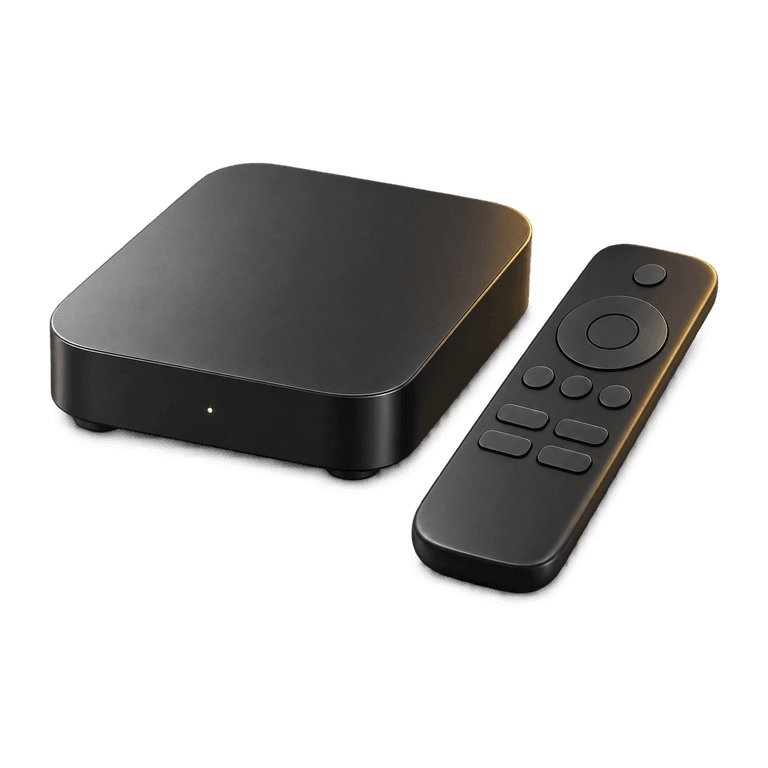
How to Install IPTV on an Android TV Box
App sourceDownloader code 2817724
Android TV and Google TV boxes, including TVs with Google TV built in, use the same Downloader method as the Firestick.
- Step 1
Install Downloader
Open Google Play on your box, search for Downloader by AFTVnews and install it.
- Step 2
Allow unknown sources
Go to Settings > Device Preferences > Security & restrictions > Unknown sources, or on Google TV Settings > Apps > Special app access > Install unknown apps, and allow Downloader. Menu names vary by manufacturer.
- Step 3
Enter the code 2817724
Open Downloader, enter 2817724 (or ibplayerpro.com/tv) and select Go.
- Step 4
Install IB Player Pro
Select Install when prompted, then Done. You can delete the APK file afterwards to save space.
- Step 5
Open the app
Find IB Player Pro in your Apps list and open it. You can move it to your home screen for quick access.
- Step 6
Find your MAC address and device key
The MAC address and device key are shown on the app's start screen, or in its settings or account section. Write them down or take a photo.
- Step 7
Send them to us
Send the MAC address and device key to us on WhatsApp or by email. We upload your playlist to the app for you, so there is nothing to type.
How to Set Up IPTV on Samsung and LG Smart TVs
App sourceSamsung Apps / LG Content Store
On Samsung, LG and other smart TVs you install IB Player Pro straight from the TV's own app store, with no extra hardware needed.
- Step 1
Open your TV's app store
On Samsung open Apps, on LG open the LG Content Store (Apps), or use the app store on your TV brand.
- Step 2
Search for IB Player Pro
Type IB Player Pro in the search box and select the app.
- Step 3
Install and open it
Select Install, then open the app once it has downloaded.
- Step 4
Find your MAC address and device key
The app's start screen, or its settings or account section, shows your TV's MAC address and device key. Write them down or take a photo.
- Step 5
Send them to us
Send the MAC address and device key to us on WhatsApp or by email. We upload your playlist to the app for you, so there is nothing to type.
If you can't find IB Player Pro on your TV's app store, contact us and we'll help you with the best option for your model.
How to Install IPTV on Android Phones and Tablets
App sourceGoogle Play
On Android phones and tablets, IB Player Pro is a normal download from Google Play.
- Step 1
Open Google Play
Open the Google Play Store on your phone or tablet.
- Step 2
Install IB Player Pro
Search for IB Player Pro and select Install.
- Step 3
Find your MAC address and device key
Open IB Player Pro. The MAC address and device key are shown on the app's start screen, or in its settings or account section.
- Step 4
Send them to us
Send the MAC address and device key to us on WhatsApp or by email. We upload your playlist to the app for you, so there is nothing to type.
How to Watch IPTV on iPhone and iPad
App sourceApp Store
IB Player Pro is available for iPhone and iPad on the App Store, so you can watch on the go.
- Step 1
Open the App Store
Open the App Store on your iPhone or iPad.
- Step 2
Install IB Player Pro
Search for IB Player Pro and tap Get to install it.
- Step 3
Find your MAC address and device key
Open IB Player Pro. The MAC address and device key are shown on the app's start screen, or in its settings or account section.
- Step 4
Send them to us
Send the MAC address and device key to us on WhatsApp or by email. We upload your playlist to the app for you, so there is nothing to type.
How to Watch IPTV in a Web Browser
App sourceWeb browser
No app needed: IB Player Pro also works in a web browser on your laptop or computer.
- Step 1
Open the IB Player Pro web player
Open the IB Player Pro web player in Chrome, Edge, Safari or Firefox.
- Step 2
Find your MAC address and device key
The MAC address and device key are shown on the player's start screen, or in its settings or account section.
- Step 3
Send them to us
Send the MAC address and device key to us on WhatsApp or by email. We upload your playlist to the app for you, so there is nothing to type.
- Step 4
Start watching
Once your playlist is uploaded, refresh the page and pick a channel, film or series.
Send Us Your MAC Address and Device Key
You do not need to type any links, usernames or passwords. Once IB Player Pro is installed, send us two details from the app and we upload your playlist to it from our side.
- Step 1
Note your MAC address and device key
Open IB Player Pro. The MAC address and device key are shown on the app's start screen, or in its settings or account section.
- Step 2
Send them to us
Send the MAC address and device key to us on WhatsApp or by email, together with the name or email address you used for your order.
- Step 3
We upload your playlist
Our team uploads your playlist to the app as soon as possible after we receive your details.
- Step 4
Restart the app and start watching
Close and reopen IB Player Pro. Your live channels, films and series appear in the app. If anything does not load, message our 24/7 support team and we will help.
Need help with setup?
Our support team is happy to walk you through it.
IB Player Pro and Downloader are third party apps and are not affiliated with or endorsed by Ireland IPTV. We do not control their availability, features or terms. Amazon, Fire TV, Firestick, Android TV, Google TV, Google Play, Samsung, LG, iPhone, iPad and App Store are trademarks of their respective owners.