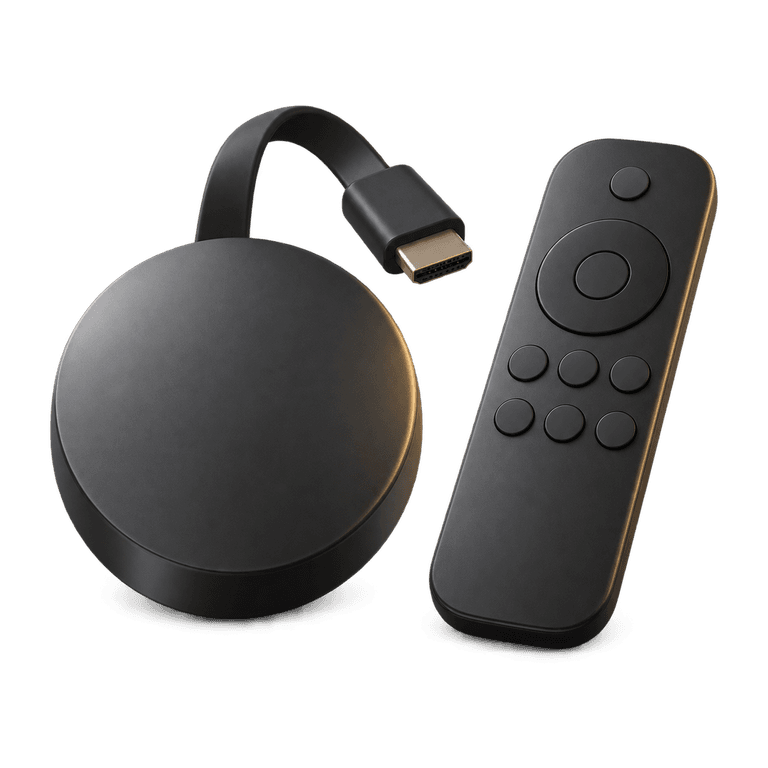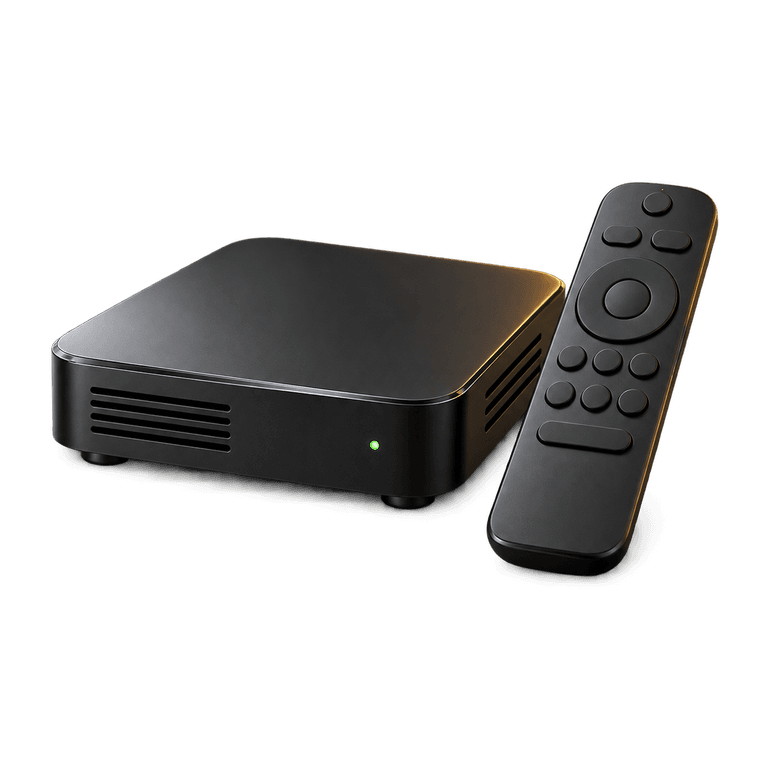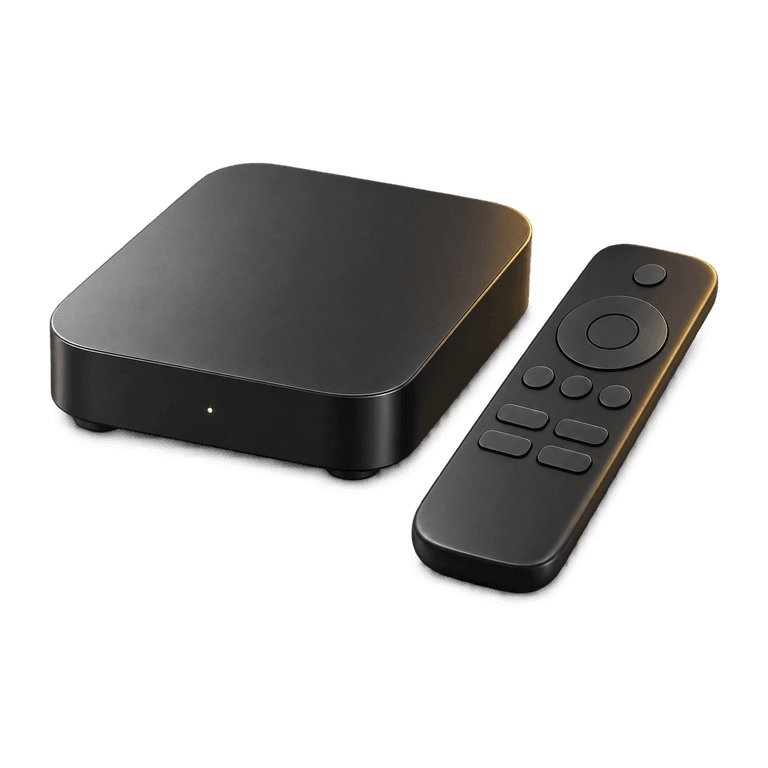
An Android TV box can give an older television a useful new role, or replace built-in apps that feel awkward. The box connects to your television and home network, while a media player handles your channel list and playback. This guide explains how to set up IPTV on your box, make the player comfortable to use and solve common problems one step at a time.
What you need for IPTV on an Android TV box
You need a television with a suitable HDMI input, a powered Android box, an internet connection and a compatible player. The player and your IPTV subscription perform different jobs: the player provides the interface, while the subscription supplies access to the available streams.
Ireland IPTV serves customers in Ireland and the UK, offering UK, Irish and worldwide channels alongside films and series on demand. A customisable channel list lets you focus on the countries you watch. HD, Full HD and 4K quality are available where supported by the stream and your setup.
Android TV and other Android boxes
The phrase Android box covers devices with different interfaces. Some use Android TV, while others use an Android interface that may feel closer to a phone or tablet. Menu names, app availability and remote behaviour can therefore differ between boxes.
Before buying a device, check player compatibility and how its interface works with a remote. If you already own a box, note its model and software version so support can give you matching instructions.
Check the box and connection first
Start with the basic connections before installing the player:
- Connect the box to an HDMI input on the television.
- Attach its power supply and select the matching television input.
- Complete the device's initial setup using the on-screen instructions.
- Connect to your home network, using Ethernet if the box has a suitable port and the cable route is practical.
- Check for system updates through the device settings.
- Confirm that the remote can move through menus, select items and return to the previous screen.
If you use Wi-Fi, place the box where the signal can reach it easily. A box tucked behind a metal cabinet or surrounded by other equipment may have a less reliable connection than one in a more open position. Keep ventilation openings clear as well.
Test your connection at the box, rather than relying only on a speed result from a phone beside the router. For a fuller explanation of connection planning, read our guide to internet speed for IPTV.
Install a compatible media player
IB Player Pro is the player used in our setup process. Check its availability for your particular box and follow the relevant installation instructions. App listings and installation routes can differ, so start with the instructions for your model.
Open the box's app store and look for IB Player Pro. Select the matching listing and follow the installation prompts. If you cannot find it, send support your model and software version by email so we can help you find the right setup route.
When the player opens, check that the text fits the screen and the remote can reach the controls. Sorting out display and remote settings now makes the next steps easier.
Keep player installation separate from activation
Once the app is installed, the next step is to connect it to your subscription. Send the MAC address and device key displayed inside IB Player Pro so that your playlist can be uploaded.
Use the details shown in the player itself, rather than the box's general network settings. Copy both values carefully, keeping letters, numbers and punctuation in the order shown. A clear photograph of the app screen can make this easier.
Order and load your subscription
If you decide to buy IPTV, choose a plan duration that suits your viewing habits and upfront budget. The available one-off payments are £30 for three months, £40 for six months and £60 for twelve months, with no contracts. The six and twelve month plans include a free premium media player app through IB Player Pro activation.
When comparing UK IPTV options, consider player activation alongside device compatibility and the programmes you want to watch. Compare the complete setup you will use at home.
The setup sequence is straightforward:
- Order your chosen plan on the website.
- Watch for payment and order details by email and WhatsApp, usually within five minutes to two hours.
- Install and open IB Player Pro on the box.
- Send the MAC address and device key shown in the app.
- Allow the playlist to be uploaded, then reopen the player if needed to load it.
Ireland IPTV also works with M3U playlists and Xtream Codes login, alternative ways for compatible players to receive subscription details. Follow the method provided for your setup and copy the details accurately.
Make everyday viewing easier
Once channels load, spend a little time arranging the experience around your household. A shorter, relevant list is often easier to browse with a remote than a long list of countries nobody watches. You can request an English-only list, for example, or keep the countries that matter to you.
Check how the player presents the electronic programme guide, usually called the EPG. It can help you see what is on without opening each stream. Catch-up is available on supported channels; look at the options for a favourite channel to get familiar with what is available.
Try a few live channels and an on-demand item to become familiar with playback controls. Check sound and picture on the television too. If the picture extends beyond the screen, review the display settings on both devices and change one setting at a time.
Troubleshoot one part at a time
A clear description helps separate a connection problem from a player or playlist issue. Note whether the problem affects one channel, several channels or every item you try.
- If menus respond slowly, restart the box and close unused apps where the device allows it.
- If the player opens but the list is missing, check that you sent the correct app MAC address and device key.
- If everything pauses, test the network connection and try Ethernet where practical.
- If only one stream has trouble, check another before changing the whole setup.
- If the picture works but sound does not, check volume, mute and the television's selected audio output.
Anti-freeze servers are designed to reduce buffering, but playback also depends on your local network and device. When contacting the 24/7 email support service, include your box model, the player name, what happens and the checks you have already tried. Keep passwords out of screenshots.
Frequently asked questions
Will an Android box work with an older television?
Check the television's available inputs and the box's connection requirements. A compatible HDMI connection lets the box provide the interface independently of the television's built-in apps. Confirm the connections before purchasing either device.
Does installing IB Player Pro include the channels?
The player provides the interface, while the IPTV subscription provides access to the service. Once IB Player Pro is installed, send the MAC address and device key displayed in the app so we can upload your playlist.
Should I connect the box with Ethernet or Wi-Fi?
Ethernet is worth trying if your box has a suitable port and you can run a cable comfortably. Wi-Fi can also work well with a strong, steady signal. Test from the box's usual position and choose the connection that gives you more consistent playback.
Why are parts of the menu cut off on my television?
Check the picture size or screen-fit settings on the television, then the display settings on the box. The names vary by model. Adjust one setting at a time and return to the player to check whether the full menu is visible.
Get your Android TV box ready to watch
With your box connected and your player ready, you are close to settling in with your favourite programmes. See our plans to choose a suitable duration, then follow the installation guide to load your playlist. If you need a hand, email us with your device details and the step you have reached.