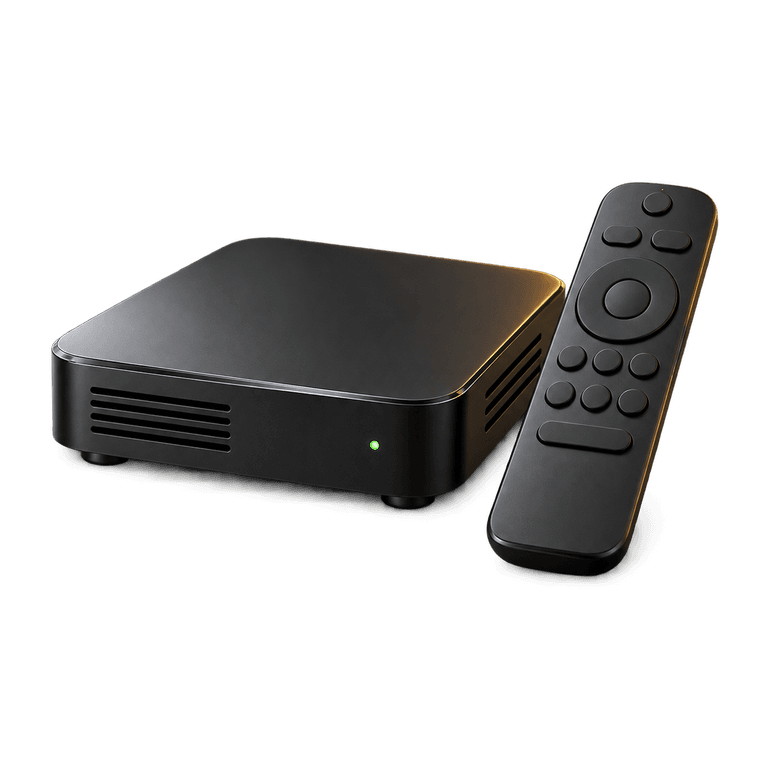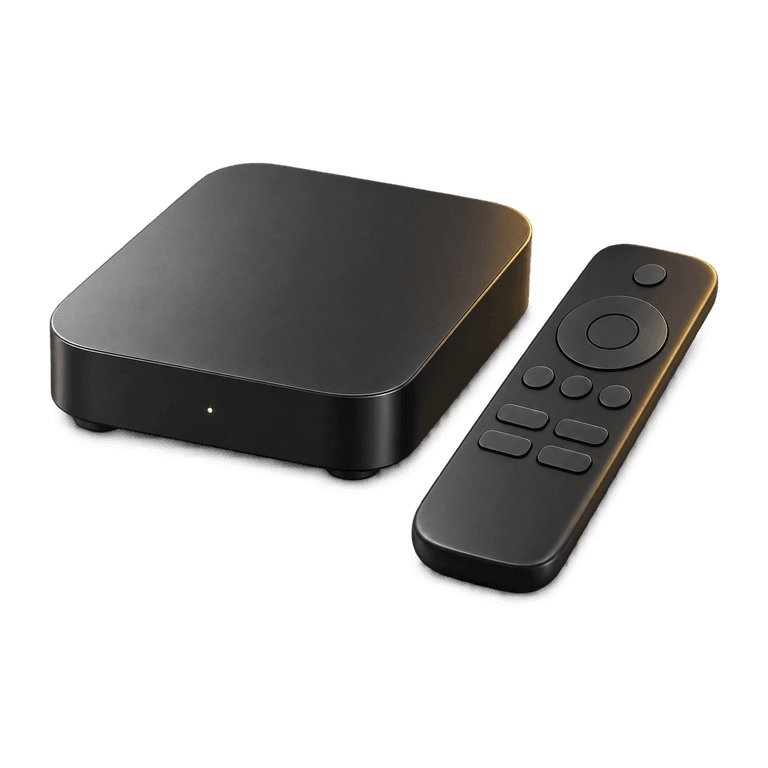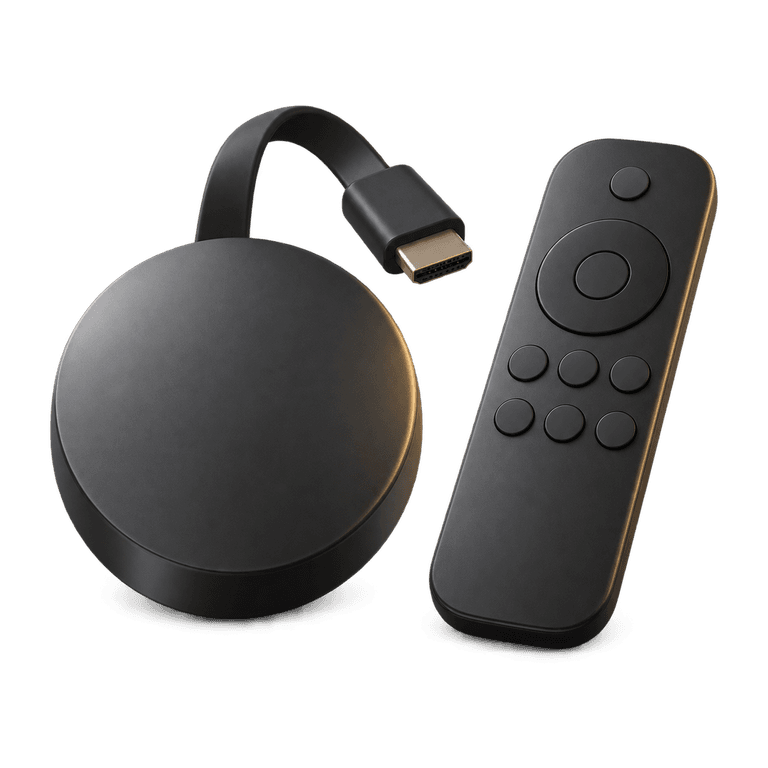
A small streaming device can make an older television easier to use, but the first setup still deserves a little preparation. IPTV on Google TV gives you a way to watch through a player on your television, with a remote control for everyday browsing. This guide covers Google TV devices and Chromecast with Google TV, from checking your equipment to arranging playlist setup and getting the picture working comfortably.
Before you set up IPTV on Google TV
Start by checking the exact device name in its settings or on its packaging. This article covers equipment running Google TV, including Chromecast with Google TV. Knowing the model makes it easier to follow the right installation steps. If the name is unclear, email support and we can help you identify which instructions to use.
Have these items ready:
- Your streaming device, remote control and suitable power supply.
- A television with an available connection for the device.
- Your home internet connection and Wi-Fi password, if required.
- Access to the email address used for your order.
- Your order details, once you have purchased a plan.
Set the television to the input used by the device and complete its initial setup. Check that the remote responds and that the device connects to your network. Resolving those basic issues first makes any later player problem easier to identify.
Prepare the device and internet connection
Use the device's settings to check for available system updates. Allow an update to finish before installing or configuring your player, and restart the device if prompted. Menu names can vary between models, so follow the labels shown on your own screen.
Next, consider where the streaming device sits. A device tucked behind a large television, close to other electronics or far from the router may receive a less reliable wireless signal. Where practical, give it some space and keep the route to the router as clear as possible.
Test the connection where you will actually watch. A quick check beside the router says little about reception at the television. Large downloads and other household activity can also affect streaming, so try playback during your usual viewing hours.
If your equipment supports a compatible wired connection, Ethernet is worth considering. Check compatibility before buying an adapter. Our guide to wired and wireless streaming explains how to compare the two connections fairly.
Choose your plan and receive the order details
Ireland IPTV serves customers in Ireland and the UK, with UK, Irish and worldwide channels, plus films and series on demand. HD, Full HD and 4K quality are available where supported by the content and your setup. Choose a picture setting that works comfortably with your screen and connection.
The plans use one-off payments with no contracts:
- Three months costs £30.
- Six months costs £40.
- Twelve months costs £60.
The six and twelve month plans include IB Player Pro activation, a free premium media player app. Before you buy IPTV, confirm the installation method for your exact device. When comparing UK IPTV subscription options, consider the duration, upfront payment and player activation together.
Place your order on the website. Payment and order details arrive by email and WhatsApp, usually within five minutes to two hours. Keep those messages available on a phone or computer so you can follow the instructions without repeatedly leaving the television screen.
Install the player and arrange playlist setup
Follow the installation instructions supplied for your Google TV device. Keep them open on a phone or computer while you work through the television screens. If a menu looks different from the instructions, email support with your model name and a description of what you see.
The normal setup sequence is:
- Install IB Player Pro using the instructions appropriate to your device.
- Open the app and locate the MAC address and device key it displays.
- Send those app details to support with enough order information to identify your purchase.
- Wait for the playlist to be uploaded for you, then follow any refresh or restart instructions provided.
- Open the channel list and test playback.
Copy the MAC address and device key from the screen inside IB Player Pro. These are the details needed for the playlist upload. A clear photograph sent directly to support can make this easier than typing a long identifier with the remote control.
The service also works with M3U playlists and Xtream Codes login. These are alternative ways of supplying connection details to a compatible player. For the assisted setup described here, follow the instructions you receive and let support upload the playlist.
Make everyday viewing easier
Start with a few familiar categories rather than changing several settings at once. Check that the remote can move through the list, open a channel and return to browsing. Then explore the electronic programme guide, or EPG, and catch-up where supported by the channel.
An EPG is useful for seeing programme listings, while catch-up lets you access earlier programmes on supported channels. Check a few familiar channels to explore the options available. If you need help finding a listing or using catch-up, describe the channel and what appears on your screen when you contact support.
You can request a customisable channel list, such as English only or the countries you watch. Email your preferences clearly. A shorter, more relevant list can make browsing more comfortable, particularly on a shared television.
If you use favourites, check the options offered by your installed player and version. Start with the channels you watch regularly, then add others gradually. Ask everyone who shares the television for their usual choices so the list feels familiar to the whole household. Keep the selection small enough to browse easily with the remote.
Check the picture before changing settings
If playback pauses, try another channel and note whether the same problem occurs. Then close and reopen the player. If needed, restart the streaming device and check the network connection again.
Picture quality depends on the source, your connection, the device and the television. Where your player offers quality choices, a lower resolution can help you test whether the connection is struggling. Change one setting at a time so you can tell which adjustment helped.
Our anti-freeze servers are designed to reduce buffering. If playback still pauses after checking the local connection, email support with your device model, the player name, what happened and whether other channels are affected. Leave the existing setup in place while you work through the checks, so support can help with the same settings you have been using.
Frequently asked questions
Does this guide cover every device called Chromecast?
It covers Chromecast with Google TV and other devices running Google TV. Check your exact model before starting. If the name or operating system is unclear, ask support which instructions apply to your equipment.
Can I use M3U or Xtream Codes on Google TV?
Yes, the service works with both formats through a compatible player. Follow the connection method provided for your setup. With the assisted IB Player Pro workflow, send the app's MAC address and device key so the playlist can be uploaded.
Can I use the remote for everyday browsing?
Yes. Use the remote to move through the player's menus, choose a channel and return to the list. The precise controls depend on your player and device. Once playback works, practise those basic steps before exploring guide information and favourites where available.
What should I do if the playlist does not appear?
Check that you supplied the MAC address and device key shown inside the installed app, then follow any refresh instructions you received. If the list remains missing, contact 24/7 email support with your order information and device details.
Get your television ready for everyday viewing
With your device connected and your preferred viewing in mind, you are ready to choose a subscription length. See our plans, then keep the installation guide beside you as you set up the player. Email support whenever you need a hand with the next step.