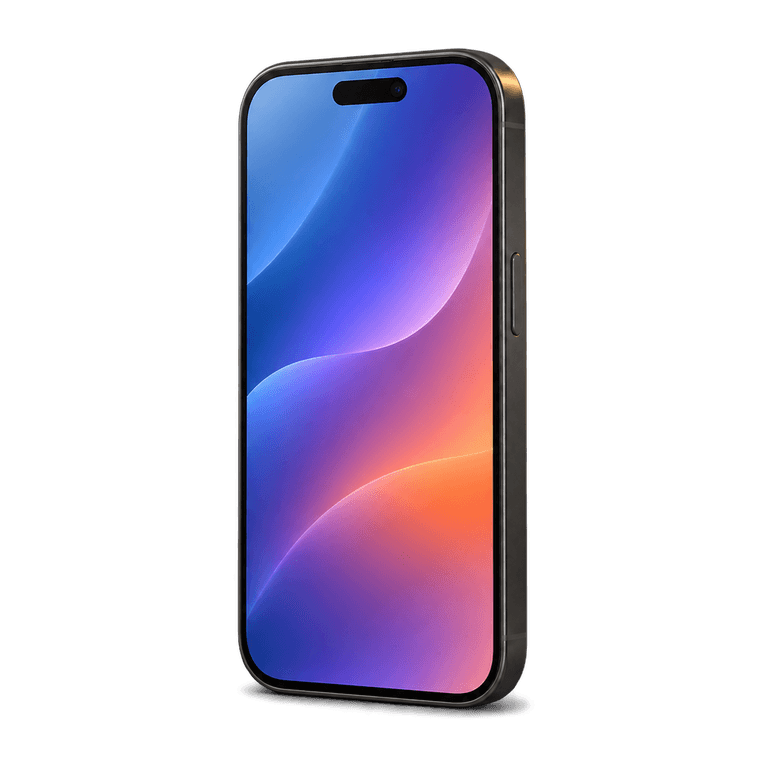
A phone or tablet can be a handy second screen when you want to catch a programme in another room while someone else watches the television. This guide covers IPTV on iPhone and iPad, from installing the player to managing mobile data. An iPad offers more space for browsing a programme guide, while an iPhone is easy to carry around the house. Both need a suitable player, an active IPTV subscription and a reliable internet connection. Start with those basics, then choose a picture quality that suits your screen and connection.
What you need before you start
Ireland IPTV serves customers in Ireland and the UK, with UK, Irish and worldwide channels alongside films and series on demand. Both iPhone and iPad are supported. Your model, software version and available player determine the installation steps.
Before you buy IPTV, have these details ready:
- Your iPhone or iPad model and software version.
- Access to the device's app store and enough storage for the player.
- A stable Wi-Fi connection for installation and initial testing.
- The email address and WhatsApp contact used for your order.
- An understanding of any mobile data limits on your phone plan.
Start with the installation guide to find the right route for your device. App availability can differ by device and region, so support can help if the indicated player is missing. When comparing UK IPTV services, check their mobile setup instructions as well as the subscription duration.
How to set up IPTV on iPhone and iPad
Setup has two stages: installing the player and adding your subscription. The player provides the viewing interface, then your playlist or login details connect it to the service.
1. Order and keep your details together
Place your order on the website. Payment and order details arrive by email and WhatsApp, usually within 5 minutes to 2 hours. Keep those messages somewhere you can find them again during setup.
Check your selected plan and contact details before submitting the order. If you need help later, having those messages ready makes it easier to explain where you are in the setup process.
2. Install the supported player
Follow the device instructions to install IB Player Pro through the supported route for your iPhone or iPad. Open it once installation finishes so you are ready for the playlist upload.
The 6 and 12 month plans include a free premium media player app through IB Player Pro activation. If you are considering a shorter plan, ask about the player requirements while checking your device's setup route.
3. Send the identifiers shown inside the app
Open IB Player Pro and locate the MAC address and device key shown by the player. Send both to us so we can upload your playlist.
Copy the identifiers from the app screen, rather than your phone's Wi-Fi settings. A clear screenshot or accurately copied text helps us match the playlist to the right installation. Check that both values are readable before sending them.
4. Refresh and test playback
After the playlist has been uploaded, follow the setup instructions to refresh or reopen the player. Try a live channel, check another channel category and open the programme guide where available.
The service works with M3U playlists and Xtream Codes login. If your setup uses either format manually, follow the supplied instructions for that method. Support can clarify which fields to fill in if the player's screen looks different from the guide.
Choose picture quality for the screen and connection
HD, Full HD and 4K quality are available where supported by the content and your setup. On a smaller screen, steady playback and readable programme information often matter more than selecting the highest resolution.
Begin with an HD option where available, then compare a higher quality version on the same connection. If the picture pauses repeatedly, return to a lower quality option and check your network before changing other settings.
At home, test from the place where you normally watch. A connection beside the router can behave differently from one in an upstairs bedroom. Large downloads and other household activity can also affect streaming. For a fuller explanation, read our guide to internet speed for IPTV.
Keep mobile data use under control
Video streaming can use a substantial amount of mobile data. Your IPTV subscription and your phone's data allowance are separate purchases, so consider both before a long viewing session.
For predictable viewing costs:
- Use a trusted Wi-Fi connection when practical.
- Check your remaining data allowance before streaming over mobile data.
- Review whether the player is permitted to use mobile data in your device settings.
- Choose a lower quality stream where available if you need to conserve data.
- Check your mobile provider's roaming terms before using data abroad.
Some iPad models use Wi-Fi without a mobile connection, so check your model before planning to watch away from home. Even with a strong signal, a busy mobile network can struggle with video. Switching to a reliable Wi-Fi connection can help you compare the two.
Make browsing comfortable on a smaller screen
A crowded channel list can be awkward on a phone. You can request a customisable channel list, such as English only or the countries you actually watch. Think about the languages and programmes you use most, then ask for a selection that suits you.
The EPG, or electronic programme guide, helps you see programme times where supported. Catch-up is also available on supported channels. Check the options shown for the programme you want to watch.
On an iPad, the larger display may make guide text easier to read without repeatedly opening individual entries. If a particular listing is missing, compare another channel and note what you see. This gives support a useful starting point if you need help with the guide.
Work through playback problems step by step
When something fails, identify what still works. If the player opens but the list is empty, check that the upload has been completed and the app identifiers were sent correctly. If channels appear but playback stops, test a second channel and check the connection.
Try these steps in order:
- Confirm that another internet task works on the same device.
- Close and reopen the player.
- Test near the router using Wi-Fi.
- Try another available quality option or channel.
- Note the exact error message and contact support if the issue continues.
Anti-freeze servers are designed to reduce buffering, while a strong local connection helps the player keep up. Email support is available 24/7. Include your device model, connection type and what you have already tried, along with the wording of any error message.
Frequently asked questions
Can I watch on both an iPhone and an iPad?
Both device types are supported. If you want to use them together, ask support about simultaneous viewing and the activation requirements for each device before adding the second player. That helps you plan the setup around how your household watches.
Do I need a separate subscription for the player?
The player provides the interface, while the service supplies the viewing access. The 6 and 12 month plans include IB Player Pro activation. Ask about player requirements for your chosen device when selecting a plan.
Which picture quality should I choose on a phone?
Start with HD where available and see how it looks on your screen. Compare a higher-quality option on the same connection if you want more detail. A lower-quality stream can be useful when mobile data is limited or the connection varies.
Why does playback work on Wi-Fi but not mobile data?
Check whether mobile data is enabled for the player and whether your data allowance remains available. Network coverage and congestion can also affect video. Test the same channel on Wi-Fi to help narrow down the cause.
Get your phone or tablet ready
Choose the screen you enjoy using most, then see our plans for a subscription duration that suits you. Follow the installation guide to prepare your player and send the details needed to load your playlist. If you need a hand along the way, our email support is available 24/7.