A television box should make watching easier, but unfamiliar settings can turn the first evening into guesswork. Setting up IPTV on a MAG box becomes clearer once you separate two things: the box's identifying MAC address and the portal address it needs to open. This guide explains that process in practical terms, with checks to make before changing settings or choosing an IPTV subscription.
Before you start: confirm your exact box
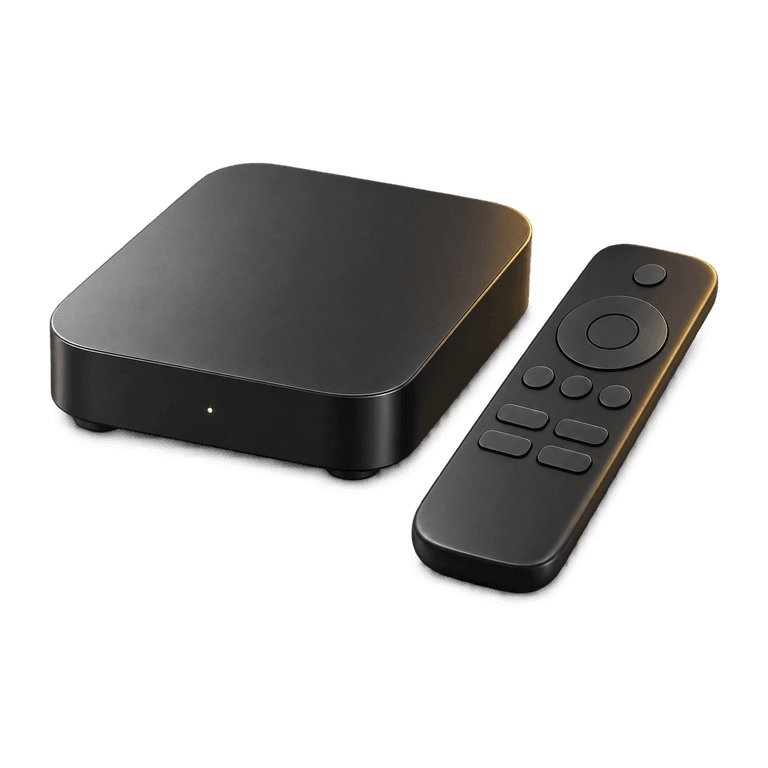
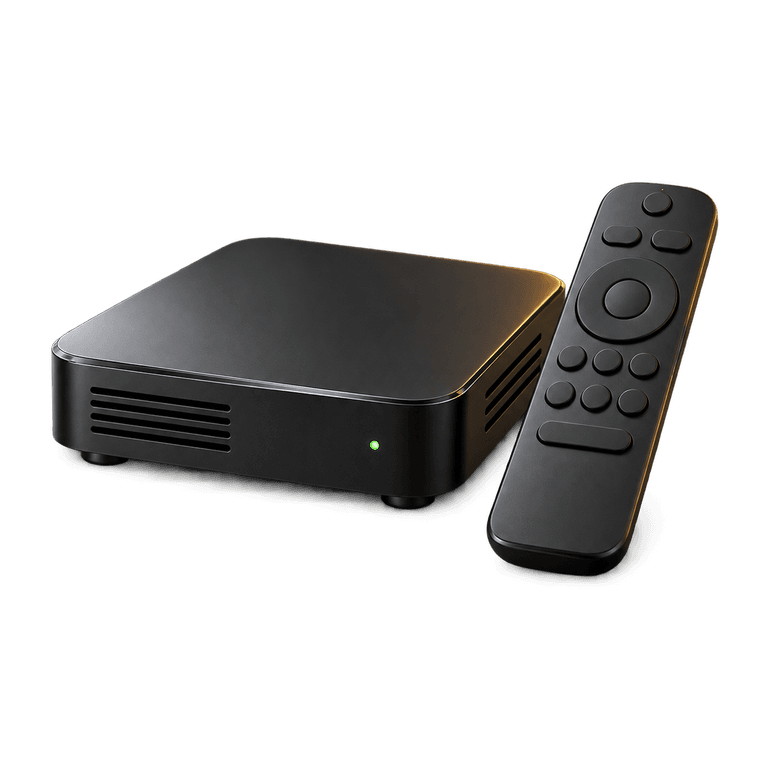
These instructions describe MAG devices that have built-in portal settings. Menus and capabilities vary by model and software version, so check the label underneath your box and keep its model number handy. If your screen looks different, ask for instructions for that exact model rather than trying unrelated menus.
Ireland IPTV supports MAG boxes. Before you buy IPTV, send support your model number so they can confirm the setup route and the access details you will need. Having that information ready makes the next steps easier to follow.
Gather the following:
- Your MAG box, its power supply and working remote.
- A television connected to the box with an HDMI cable.
- A working internet connection, preferably with an Ethernet cable nearby.
- The box's MAC address, checked carefully against its settings or label.
- The portal details and any additional instructions confirmed for your subscription.
If you already have a working configuration, photograph the current settings before editing them. Keep that record private because portal details may relate to your account.
Understand your MAG box's MAC address and portal
A MAC address identifies a device or network interface. In a MAC-based portal arrangement, the provider associates the appropriate device identifier with your account. The portal address tells the box where to load its television interface. Both pieces need to match the setup arranged for your account.
Find the correct MAC address
Look for a MAC entry on the box's label and in its device information or system settings. Menu wording varies. Copy every character and separator exactly, then read the address back against the original.
Use the address belonging to the MAG box, rather than your router or television. If the label and screen show different identifiers, ask support which one is required for your model and connection. Leave the identifier unchanged while troubleshooting so support can check the same details you supplied.
Keep app activation details separate
The MAC address and device key displayed inside IB Player Pro belong to that app's setup process. They are not interchangeable with the hardware details used for a MAG portal configuration.
The IB Player Pro workflow involves installing the app and sending its displayed MAC address and device key so the playlist can be uploaded. A MAG box using built-in portal settings follows a different route, so use the instructions confirmed for your model.
Enter the portal settings step by step
1. Connect the television and network
Select the television's HDMI input for the box. If practical, connect Ethernet from the router to the MAG box. A cable gives you a useful starting point by taking the wireless link out of the setup checks.
If you use Wi-Fi, first check that your model supports it and that the box is connected to your home network. Leave the box ventilated and avoid hiding it tightly behind other equipment.
2. Open the system settings
From the box's built-in menu, open System settings, then Servers, then Portals where those options are available. Your remote or software may use slightly different wording.
If the box opens an existing portal immediately or these settings are unavailable, ask support how to reach the settings on your model. Keep the current configuration in place while you check, as a reset can remove settings you may still need.
3. Copy the supplied address exactly
Choose the portal entry you have been instructed to configure. A portal name is normally a label to help you recognise it; the portal URL is the connection address.
Enter the confirmed URL exactly, including its opening prefix, punctuation, any port number and any ending path. Use the complete address supplied for your setup, rather than a website homepage or an example found elsewhere. A small typing error can prevent the portal from loading.
4. Save and restart the portal
Save the entry using the confirmation shown on your screen. Where available, use Restart portal in system settings to reload the interface with the updated details.
Allow the loading process to finish. Repeatedly pressing buttons or switching off the box makes it harder to tell whether a setting has worked. If a selection screen appears, choose the intended portal.
5. Check playback and the guide
Open a channel and check picture and sound. Then try a different programme type so that one unavailable stream does not become your only test.
Check the electronic programme guide, or EPG, if supported. Confirm the box's local time and time zone if programme times look incorrect. Catch-up is available on supported channels, so check a channel confirmed to support it when testing that feature.
Troubleshoot without losing your settings
If the portal fails to open, work through a short sequence:
- Check that the box has a network connection.
- Read the saved portal URL against the supplied instructions.
- Confirm with support that the correct MAC address is associated with your subscription.
- Record the exact error message and the point at which it appears.
- Restart the portal once after correcting a confirmed problem.
If the interface loads but video pauses, separate playback trouble from portal access trouble. Try another channel, pause large downloads elsewhere at home and compare Ethernet with Wi-Fi where possible. Our buffering advice explains how to narrow down interruptions.
Change one setting at a time and note the result. If a factory reset or software change becomes necessary, get model-specific guidance first so you know how to restore the configuration afterwards.
Plan your subscription around the device
When comparing UK IPTV services, start with the device you already own. Check what your exact box supports, how access will be configured and what information you need to provide. Once those details are clear, choosing a suitable duration is much easier.
Ireland IPTV offers one-off payments with no contracts: three months for £30, six months for £40 or twelve months for £60. The six and twelve month plans include IB Player Pro activation. That app benefit is separate from the built-in portal setup described here. Email support is available 24/7 if you need help identifying the correct route.
Frequently asked questions
Is the portal URL the same as an M3U playlist?
No. A portal URL opens a portal interface, while an M3U address points to a playlist. Use the format confirmed for your device rather than pasting one into the other's field.
Do I need to install IB Player Pro on my MAG box?
For the built-in portal route described here, you follow the box's portal settings rather than the app activation process. Support can confirm the appropriate method for your exact model before you start.
Can every MAG box display 4K?
Picture quality depends on the model, television, connection and stream. The service offers HD, Full HD and 4K where available. Check your box's specifications and choose a quality supported by your complete setup.
What details help support with a setup problem?
Send your box's model number, the exact message on screen and whether you use Ethernet or Wi-Fi. Explain whether the portal fails to open or opens without playing video. Share any account or device identifiers privately through support.
Get your MAG box ready to watch
With your device details and connection checked, see our plans to choose a duration that suits you. Keep the installation guide nearby and work through the confirmed setup steps at your own pace.