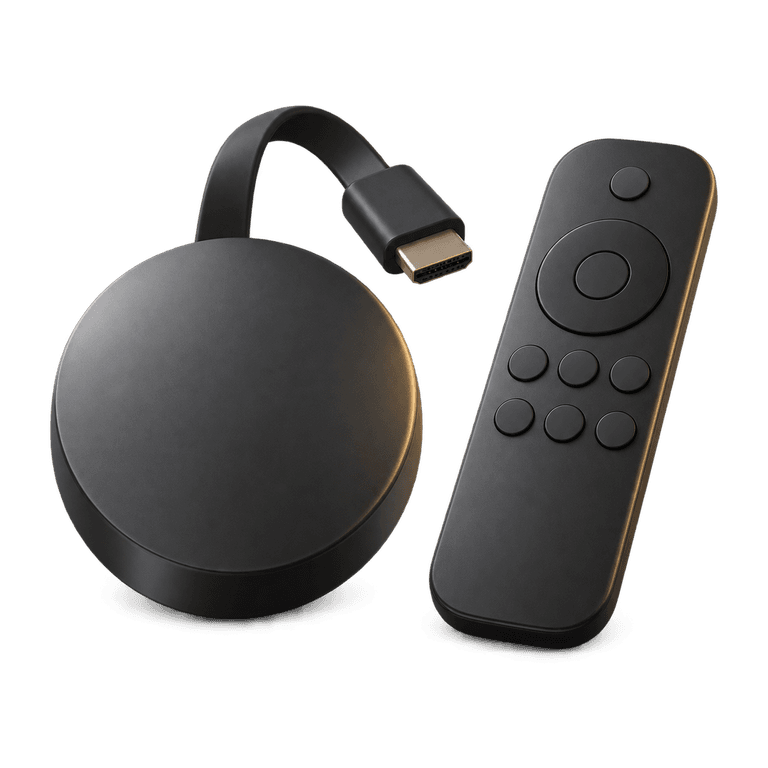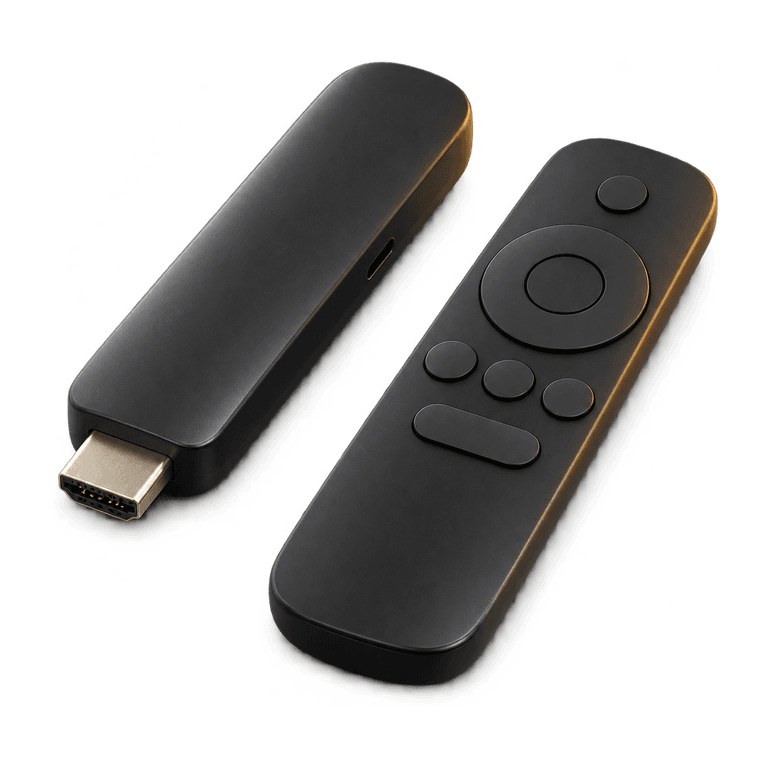
Setting up IPTV on Firestick involves two separate jobs: installing the player and connecting it to your subscription. The Ireland IPTV setup uses the Downloader app to get IB Player Pro with code 2817724. Once the player is installed, you send us the MAC address and device key displayed inside it, and we upload your playlist. Working through these steps in order makes it easier to identify anything that needs attention.
This guide covers compatible Amazon Firestick and Fire TV devices that support the Downloader installation route. Menus and installation options vary by model and software version, so check your exact device before you buy IPTV or replace existing equipment.
Before setting up IPTV on Firestick
Connect your device to the television, select the correct input and confirm that you can use the remote to navigate its home screen. Use the power supply intended for the device and allow any pending software update to finish before installing the player.
Have the following ready:
- A working internet connection at the television.
- Access to the device's app store and settings.
- Your order information, if you have already ordered.
- A phone or another way to copy the app's identifiers accurately.
It helps to note your device model before starting. You can use it to find the relevant instructions or include it when asking support for help. Set aside a few minutes to complete each stage, with the television and your order details close at hand.
Step 1: Install the Downloader app
From the device's home screen, open the search area. Depending on your interface, this may appear under Find or as a search icon.
- Search for Downloader.
- Select the Downloader app from the results.
- Choose the download or installation option shown.
- Wait for installation to finish, then open the app.
Follow any initial prompts needed to use Downloader. If the app does not appear, check your spelling, device compatibility and account region. Support can help you confirm the right installation route if the search results look different.
Downloader obtains the player installation file. Once it has done that job, the remaining setup takes place in IB Player Pro, where your channel list will be loaded.
Step 2: Allow Downloader to install the player
On compatible models, you may need to permit Downloader to install an app obtained outside the device's app store. The wording and location of this permission can vary.
The usual route is:
- Open Settings.
- Select My Fire TV, or the equivalent device settings area.
- Open Developer options.
- Choose Install unknown apps.
- Select Downloader and enable its installation permission.
Some older interfaces display Apps from Unknown Sources instead. Where a per-app choice is available, enable the permission for Downloader specifically.
If Developer options is hidden
On some compatible models, open Settings, then My Fire TV, then About. Highlight your device name and press the remote's select button seven times. Return to the previous menu and check whether Developer options is now visible.
If your menus look different, note the options you can see and contact support with your model details. That gives them a useful starting point for helping you find the right route.
Step 3: Enter code 2817724 in Downloader
Return to Downloader after enabling the required permission. Use its address or code entry field, rather than the search box on the Fire TV home screen.
- Select Downloader's entry field.
- Enter 2817724 carefully.
- Choose the button to continue.
- Follow the download route for IB Player Pro.
- When the installation screen appears, choose Install.
- Wait for completion, then open IB Player Pro.
Check that you are installing the intended player. If the code produces an error or an unexpected destination, check the digits and consult the installation guide or support before continuing.
The code takes care of obtaining the player. Next, you will connect that installation to your subscription by sharing the details displayed inside the app.
Step 4: Send the app's MAC address and device key
Open IB Player Pro and locate the MAC address and device key displayed inside the app. Take a clear photo or copy both values exactly, including any punctuation shown.
These identifiers let us upload the playlist to your player. Use the values IB Player Pro displays, as its MAC address can differ from the network address shown elsewhere in your device settings.
Before sending them, check that:
- Both identifiers are visible and readable.
- No character is missing from either value.
- You can identify the order they belong to.
Send us the MAC address and device key with your order details so we can upload the playlist. Payment and order details arrive by email and WhatsApp, usually within 5 minutes to 2 hours of ordering on the website. Keep those messages handy while you complete the setup so you can easily refer back to them.
Step 5: Open your list and check playback
Once the playlist has been uploaded, reopen IB Player Pro and follow its on-screen options to load the list. If it still displays an empty screen, close and reopen the player before changing settings.
Start with a familiar channel and let it play for a few minutes. Then check another channel and an on-demand item. This helps distinguish a problem affecting one stream from a wider connection or setup issue.
Ireland IPTV provides UK, Irish and worldwide channels, plus films and series on demand. HD, Full HD and 4K are available where supported. The EPG and catch-up also depend on channel support, so check them separately from basic playback.
If the list feels cumbersome, ask about a customised selection, such as English-only channels or the countries you watch.
If something does not work
The player will not install
Check the model, available storage and the permission granted to Downloader. Read the exact error message before trying again. If installation remains blocked, record that message and ask for guidance.
The player opens but the list is empty
Confirm that the playlist upload has been completed and that you sent the identifiers from IB Player Pro. Reinstalling immediately can complicate diagnosis, so check these details first.
Playback pauses or the picture breaks up
Restart the player and check the device's network connection. Test closer to the router if possible, pause large household downloads and try a lower-quality stream. Our anti-freeze servers are designed to reduce buffering, and checking your home network can help improve playback too. Our buffering troubleshooting guide offers further checks.
Email support is available 24/7. Include your device model, the stage you reached and any error wording when requesting help.
Frequently asked questions
Does Downloader include an IPTV subscription?
No. Downloader obtains the player installation file. IB Player Pro is the player, while your subscription provides access to the viewing service. You still need to complete the playlist upload process.
Which plans include IB Player Pro activation?
The 6 month plan at £40 and the 12 month plan at £60 include a free premium media player app through IB Player Pro activation. A 3 month plan costs £30. All use one-off payments with no contracts.
Will this work with a UK IPTV subscription?
We serve customers in Ireland and the UK, and the same general steps apply in both countries. Follow the instructions for your compatible device and test the connection where you normally watch.
Should I send the MAC address from network settings?
Use the MAC address and device key shown inside IB Player Pro. These identify the player installation we need to set up. The network address listed in Fire TV settings or on your router serves a different purpose.
Get your Firestick ready for viewing
With the player installed, you are ready to choose a plan and send us the details needed to load your playlist. See our plans for the available subscription durations, and keep the installation guide beside you as you finish setting up. If you need a hand along the way, our email support is available 24/7.