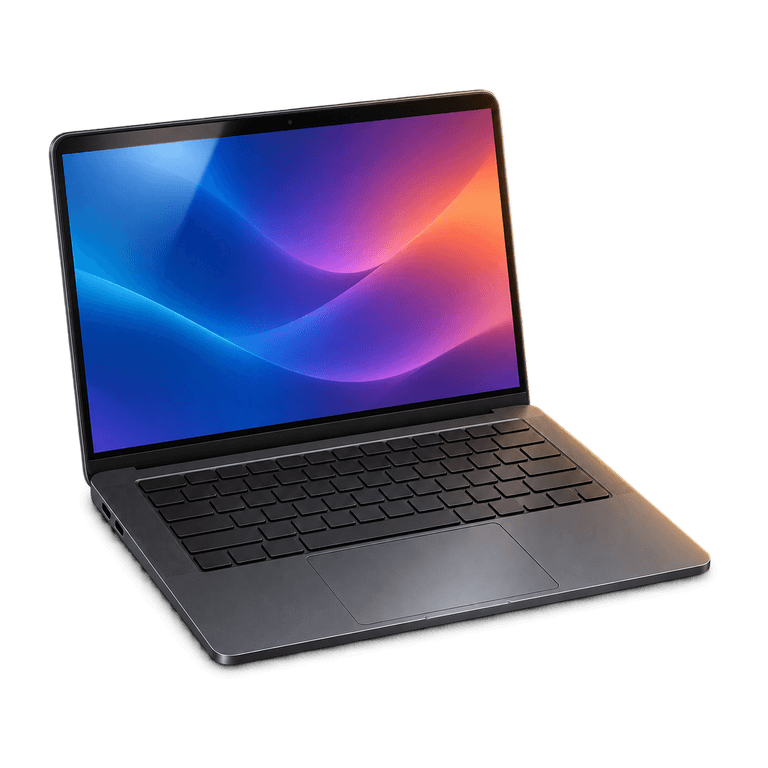
Watching IPTV on your PC is a convenient way to enjoy television at a desk or settle down with a film on your laptop. Start with a compatible player and the connection details supplied with your order. Once those are in place, you can organise your favourite channels, browse films and series, and adjust playback to suit your connection. The steps below take you through setup on a Windows computer or Mac, with practical checks to help you get comfortable viewing.
What you need to watch IPTV on a computer
Prepare these essentials before installing anything:
- A Windows PC or Mac with a working internet connection.
- An IPTV subscription and the setup details supplied for it.
- A player that supports your operating system and connection method.
- Access to your order email so you can check instructions accurately.
- Enough time to test playback before a programme you want to watch.
Ireland IPTV supports Windows PC and Mac, with M3U playlists and Xtream Codes login available as connection methods. Look for a player that supports your computer and the method you intend to use. Checking those details before you buy IPTV gives you a clear route from ordering to watching.
Keep your computer connected to power during initial setup. Close unnecessary downloads and make sure sound is working before opening the player. These simple checks make it easier to tell a setup issue from a computer or network issue.
Choose a compatible player
Check availability before installation
IB Player Pro is an option where a compatible version is available for your computer. Check the current availability and system requirements for your exact operating system as your first step.
Alternatively, use a compatible desktop player or web player that explicitly supports M3U or Xtream Codes. A web player runs through a browser; a desktop player is installed on the computer. Read the feature description to check how it handles channel lists, programme information and playback controls.
Match the player to your habits
Look for clear channel navigation and readable programme information. If you watch longer films, explore the full-screen controls, subtitles where available, and audio selection as you get to know the player. Choose a layout that feels comfortable on the screen you use most often.
Use installation instructions supplied by the player developer and check any activation requirements before proceeding. Keep the player instructions alongside your order details: player activation and your television subscription are different parts of the setup.
Set up IB Player Pro where available
Ordering through Ireland IPTV and loading the playlist works as follows:
- Place your order on the website.
- Look for payment and order details by email and WhatsApp, usually within 5 minutes to 2 hours.
- Install IB Player Pro on a compatible device using the relevant instructions.
- Open the app and find the MAC address and device key it displays.
- Send those app details through the contact route provided so we can upload the playlist for you.
- Follow the supplied instructions to load the playlist, then test a channel.
Use the identifiers shown inside the app, which are the details needed for this setup. A network address found elsewhere in your computer settings serves a different purpose. Send the information through the support route given with your order and keep it private.
The 6 and 12 month plans include IB Player Pro activation. Confirm the compatible version for your computer, then follow its installation steps to complete this part of the setup.
Connect through M3U or Xtream Codes
Using an M3U playlist
In a compatible player, choose the option for adding an M3U playlist. Depending on the player and the details supplied, this might accept a playlist link or a playlist file. Copy the information carefully, save it, and allow the player to load the list.
If you were given a link, make sure the whole link was copied. Missing characters or an accidental space can prevent a connection. Keep the original details somewhere private rather than trying to reconstruct them from memory.
Using Xtream Codes login
A player supporting Xtream Codes generally provides separate fields for the server address, username and password. Enter each supplied value in its matching field. Check spelling, punctuation and letter case before saving.
Save the login and allow the player to finish loading before opening a channel. If your instructions and the available fields differ, check the player's supported methods or contact support. Our M3U and Xtream Codes guide explains the distinction further.
Make viewing comfortable on a computer
Start with a short playback check at a suitable quality. HD, Full HD and 4K are available where supported, with picture quality also depending on the stream, your player, computer and connection. Choose a lower available quality if playback is struggling.
An Ethernet connection is useful when your computer and router support it. With Wi-Fi, try a location with a stronger signal and pause large downloads while testing. Avoid changing several settings at once, because that makes the result harder to interpret.
Use favourites where your player supports them. You can also request a customisable channel list with English-only channels or the countries you watch. For regular viewing on a smaller laptop screen, a focused list makes browsing much easier.
EPG information and catch-up are available on supported channels. Explore what your chosen player displays and look for a replay option beside a programme when you want to watch it later.
Fix common connection and playback problems
If nothing loads, confirm that the computer has internet access, then check the connection method and supplied details. If channels load but playback fails, try another channel before changing your login. A problem affecting one stream calls for different checks from a completely empty playlist.
For sound problems, check the computer volume, selected audio output and player volume. Headphones or an external display can change where sound is sent. For pauses or freezing, close downloads, test a stronger connection and try a lower available quality.
Our anti-freeze servers are designed to reduce buffering. Checking your local connection and computer helps identify other causes of playback problems. Email support is available 24/7: describe the operating system, player, error message and checks you have tried, keeping passwords out of screenshots.
Frequently asked questions
Can I use the same instructions on Windows and Mac?
The overall process is similar, but installation steps and compatible player versions can differ. Follow instructions for your operating system and use only the connection methods your chosen player supports.
Does a web player work in every browser?
Browser support varies by player. Check the web player's stated browser requirements and supported login methods, then use a compatible browser for setup and regular viewing.
Why is there sound from my computer but no sound in the player?
Check the player's own volume and mute controls, then confirm the selected audio output on your computer. If you recently used headphones or connected another display, sound may be directed there. Try another channel to see whether the issue affects every stream.
Make your computer a comfortable place to watch
A familiar computer and a well-organised player can make everyday viewing straightforward. See our plans to choose an IPTV subscription that suits you, then follow the installation guide to get connected. Take a few minutes to arrange your favourites and check playback, and your setup will be ready for the programmes you enjoy.